fbpx

Published December 8, 2025 . 4 mins read

We Stopped Hiding Your Custom Dashboards From You

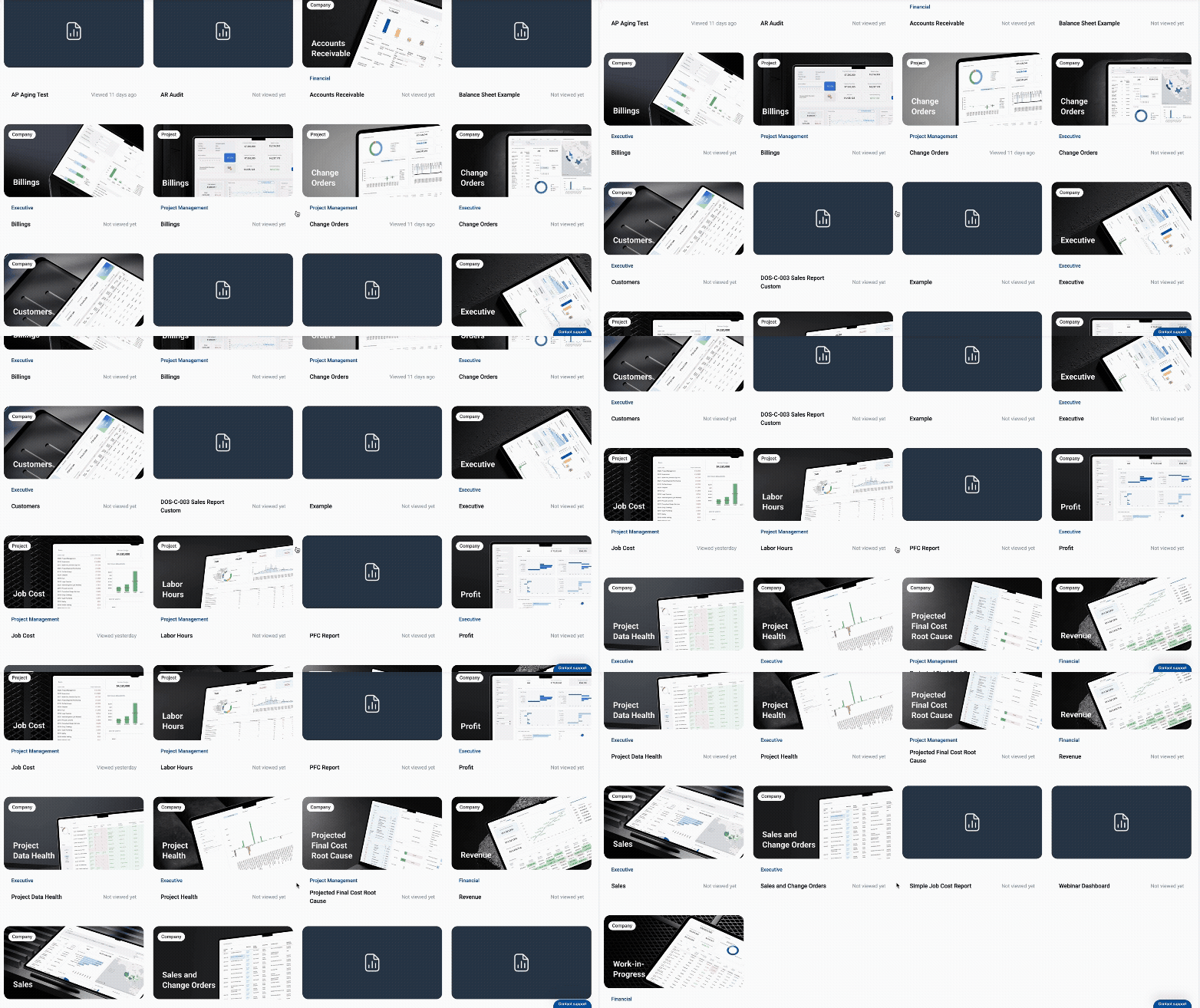
Let me tell you about the old Analytics experience. You’d land on a page showing all the standard dashboards: Billings, Sales, Revenue, the usual suspects. Great, except most people wanted their dashboards. The custom ones they’d spent hours building to track the metrics that mattered to their business.

To find those custom dashboards, you had to click a toggle labeled “By category.” That toggle completely changed the view. Standard dashboards disappeared. Custom dashboards appeared, organized into subcategories. If you had a “Q4 2024” category with two dashboards in it, and a “Project Managers” category with three dashboards, you’d be doing a lot of scrolling.

We redesigned it.

What changed

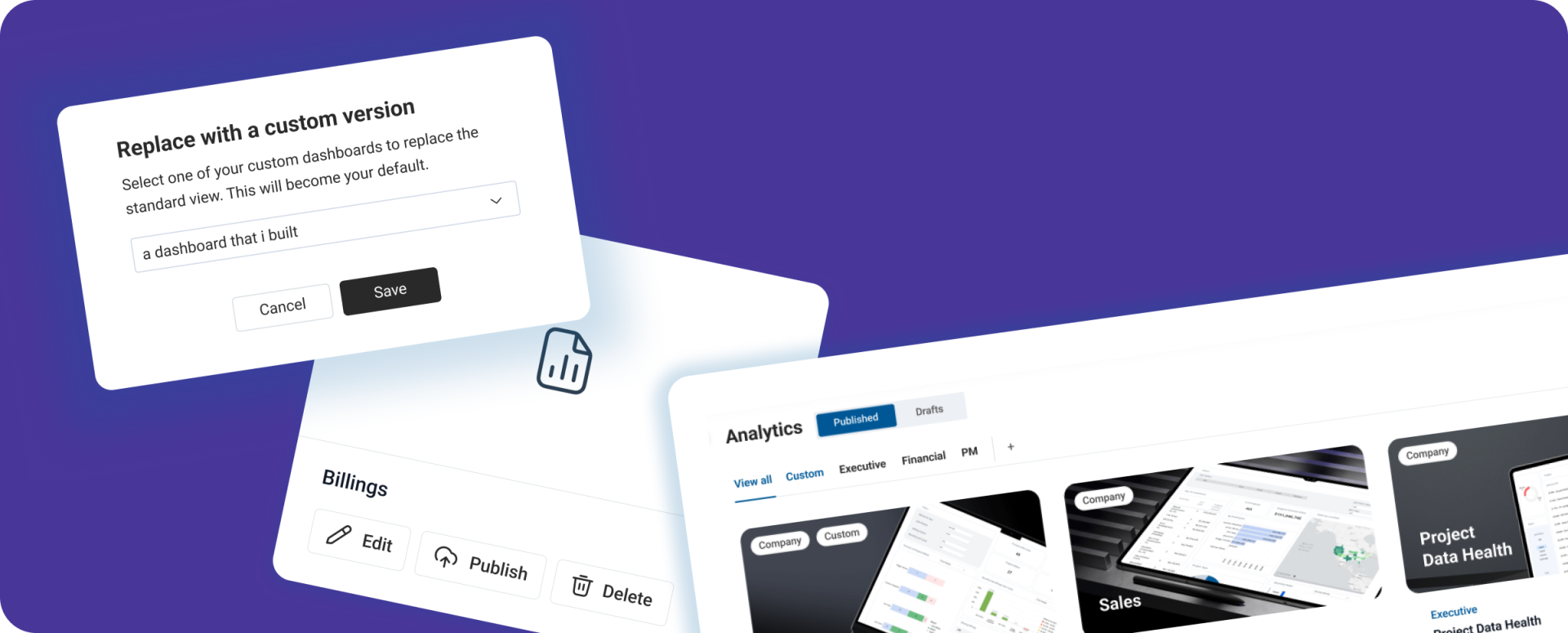
The new Analytics module doesn’t distinguish between “standard” and “custom” anymore. Executive, Financial, PM, Custom, or whatever you’ve named your categories, live at the top of the page in a horizontal tab bar. Click a tab, see those dashboards. But the main benefit of this design is that you’re in control now. You can move dashboards between categories, rename categories, delete them. You can create new ones with the “+” button. Want to move that AP dashboard from Financial to Executive because your CFO looks at it every morning? Go ahead. Want to rename “Executive” to “Leadership” or “The dashboard Anna actually checks”? We’re not stopping you. The “View all” tab shows every published dashboard in one scrollable view, sorted by most recent activity. The “Hidden” filter in the top right lets you see everything you’ve stashed away.

Xenia Leshchenko
Head of Design

Standard dashboards aren’t sacred anymore

Starting today, you can rename standard dashboards. If everyone on your team calls the “Sales” dashboard “Pipeline,” just change the name. It’s your platform.

You can also replace any standard dashboard with your custom version in about three clicks:

1. Create your custom dashboard (or use one you’ve already built)

2. Click the three-dot menu on the standard dashboard card

3. Select “Replace” and choose which custom dashboard you want to swap it with from the dropdown

That’s it. Your custom version now lives where the standard Billings dashboard used to be. You can always bring the original report back if you change your mind.

Here’s what else is new:

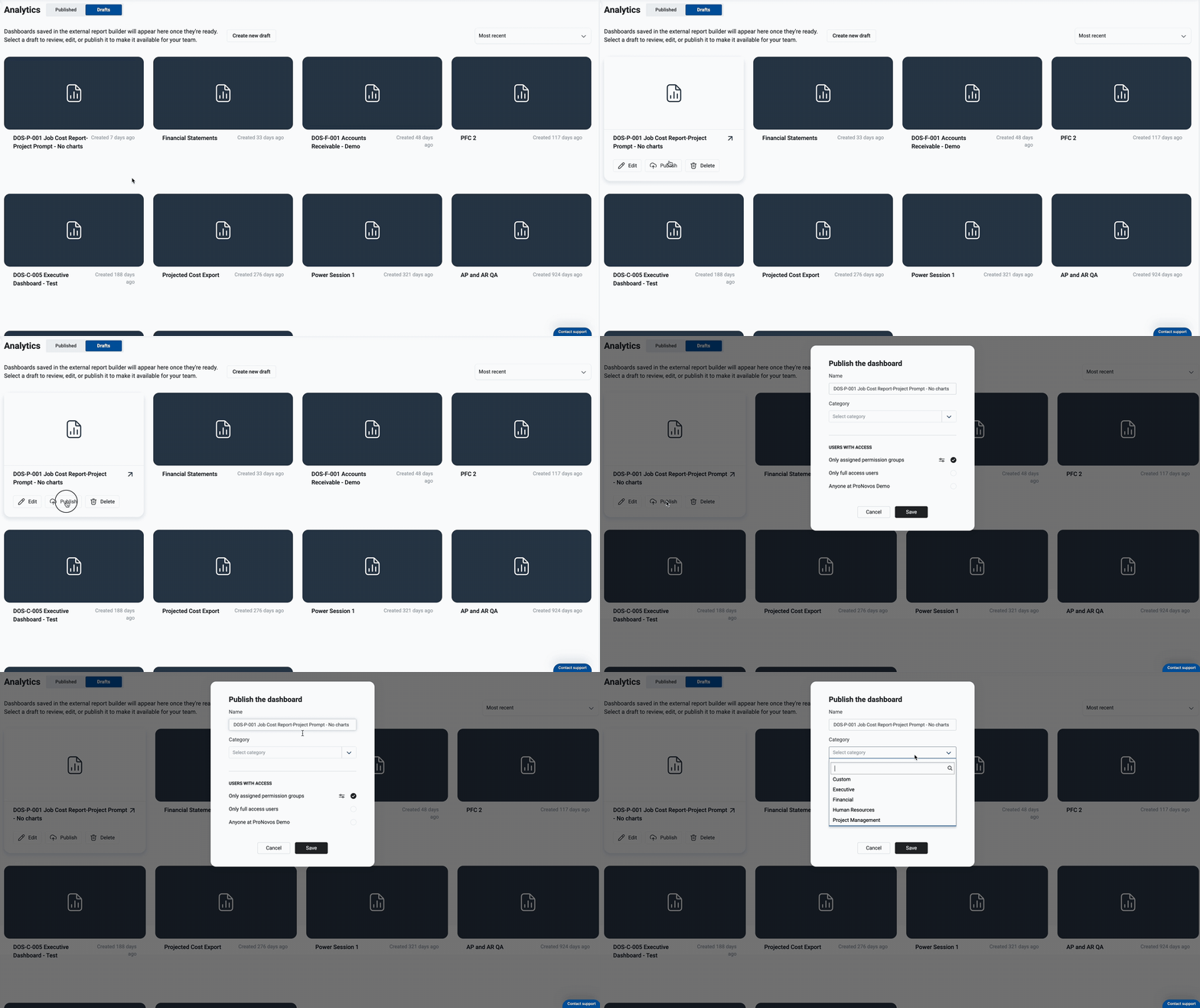
Publishing: There’s now a “Drafts” tab at the top of the Analytics page. All your unpublished dashboards live there. Click on one, click “Publish,” done.

Hiding: If you’ve got dashboards you’re not using, you can hide them. Right-click on any dashboard card (or use the three-dot menu) and select “Hide.” It disappears from the main view but doesn’t get deleted. You can still access hidden dashboards by clicking the “Hidden” filter in the top right. Unhide them anytime if you need them back.

Standard dashboards aren’t sacred anymore

Custom dashboards are where teams do their actual work. They’re made for specific roles, specific projects, specific ways of tracking performance. This redesign makes the system flexible enough to match however you actually work, without forcing you into a predefined structure. We’ve heard from users who spent hours building the perfect dashboard but wanted easier ways to share it with their team or replace standard ones. Now you can.

If you’ve got ideas for what should come next, let us know. The new Analytics module is live now for all ProNovos users. No setup required.